Thursday, 18 May 2017

Bookémon Go! - Nuestro juego para animar a la lectura

¿Qué es un Bookémon? Si vienes por el CEIP Maximiliano Macías deberías saber que existen unas criaturas, unas benévolas otras más traviesas, escondidas por cualquier estancia y rincón del colegio, ya sea dentro de un edificio o escondidas en el patio. Se llaman Bookémon y han surgido de la imaginación de los niños y niñas de Sexto B para contagiar a todos los alumnos del colegio su amor por los libros.
Logo de Bookémon Go! Creado por Ismael Vivas (6ºB)
Cada Bookémon se llama de una manera distinta y vive en un lugar diferente. Todos poseen características singulares (leer rápido, devorar libros, esconder la verdura del comedor, escuchar los chismes de la sala de profesores...) y también tiene un libro favorito que recomendar a quien sea capaz de atraparlo, niño o adulto.
Wosefly vive en las pistas del recreo.


Para cazar a los Bookémon del Maxi debes encontrar unos códigos QR que están esparcidos por todo el colegio. Hay niños que los han visto también por el barrio y hasta en el parque de las Siete Sillas junto al río. ¡Estos Bookémon son también viajeros!

Según conocemos hay quince Bookémon diferentes. Los puedes coleccionar pegándolos en el álbum que puedes conseguir en el cole. Si quieres uno puedes pedírselo al profe Francisco o a algún niño o niña de Sexto B. 

Puedes coleccionar tus Bookémon en su álbum.

Hasta final de curso irán apareciendo nuevos Bookémon por el colegio. Algunos aparecerán por sorpresa y otros escondidos en libros que habrás de leer tras las pistas que deberás seguir para cazarlos. ¡Está atento para ser el primero en pillarlos!

Videoreseñas 2017 o "booktrailers" por auténticos "booktubers"

Los alumnos de Sexto B, continuando y ampliando la actividad innovadora de fomento de la lectura del curso pasado este año hemos grabado diez nuevas videoreseñas (también llamados booktrailers) de libros de nuestra biblioteca.

Como en la ocasión anterior, por parejas, primero hemos leído el libro; después hemos realizado la reseña en papel; hemos ensayado la exposición oral; y, finalmente, hemos realizado la grabación del vídeo con nuestra tablet o el smartphone de clase. Para ello, los niños se han organizado y coordinado libremente intentando ser creativos tanto en el mensaje como en el escenario elegidos. 

Después de subir los vídeos al canal de YouTube del colegio hemos generado códigos QR que finalmente hemos pegado en el interior de la solapa trasera de los libros. De esta manera, cualquier posible lector puede acceder a través de su smartphone o tablet a nuestro comentario sobre el libro que tiene en las manos. 

Podéis consultar todos los booktrailers en el muro colaborativo de Padlet que tenéis al hacer clic sobre la siguiente imagen:


¡Nos hemos sentido verdaderos booktubers!

Thursday, 23 March 2017

Learning about Augmented Reality (AR) in Year 5's Art and Crafts lesson

This second term is reaching its end. So far we have learned about 3D drawings, collages, sgraffitos... but there is still time to use some technology in our class.
We are learning about augmented reality (AR). Thanks to an APP called Quiver we can see how our pictures come to life through the camera of our tablet or smartphone. 

Here you can see a photograph of Iker's Earth map turned into a holographic representation of our planet.
Is it magic? No, it isn't. It's AR!

Angel Manuel is playing with his customized Ford Kuga

The pukeko bird comes to life through the tablet's cammera.

Sarah is happy to see her fashion model on the catwalk.

Beatriz tries to play the magic on our IWB.

Iker shows us his pukeko bird.

Yerai is ready for his party!

Thursday, 12 January 2017

Códigos QR para nuestros libros de la biblioteca

Este segundo trimestre vamos a aprender a generar códigos QR en el área de Lengua. Con ello nos proponemos que los lectores de los libros de la biblioteca de nuestro cole puedan acceder a las videoreseñas que creamos en el curso anterior.
Así, gracias a cualquier software lector de códigos QR, podrá visionar nuestros vídeos y tener una ligera idea de qué trata el libro que tiene en sus manos.

Para crear los códigos emplearemos la web http://www.codigos-qr.com/generador-de-codigos-qr/


Bastará con introducir el enlace de nuestro vídeo en YouTube para obtener nuestro código QR, que posteriormente lo imprimiremos y pegaremos en los libros.

Los códigos generados que nos encontremos en los títulos los podremos capturar con una sencilla aplicación para tablets y smartphones como QR Droid Code Scanner.

Más adelante comentaremos qué tal ha ido la experiencia.

Thursday, 24 November 2016

Revising our Energy unit with mind maps

In Year 5A and 5B we have revised our unit about energy by using an online tool called Popplet. This tool allows to create mind maps on our computer screen.

Here are the popplets designed by the students in class:

FORMS OF ENERGY


ENERGY SOURCES


HEAT

THE SUN


Popplet has an iOS version for iPad. Android users can use SimpleMind Free

Saturday, 2 July 2016

To my year 6A & 6B kids: all the best for the future!

Dear Year 6A & 6B students:

I could not say good bye to you last day of school. I wish you all the best for your future. You are going to do great at secondary school. Remember, believe in yourself!

Lots of love from your teacher Francisco.

Year 6A

Year 6B

Thursday, 2 June 2016

Jugando, jugando, vamos mejorando.

La gamificación está de moda y ha llegado a nuestras clases para hacerlas más divertidas mientras aprendemos y repasamos los nuevos conceptos.

En 5ºB utilizamos Class Dojo para asignar una serie de puntos y bonificaciones por realizar la tarea, por trabajo en equipo, por ser perserverantes, por el orden y la limpieza, etc. Esta herramienta se muestra en la pizarra digital y cada niño tiene asignado un avatar con su puntuación. También existe versión para smartphones y tablets. 

Nuestra clase de 5ºB en Class Dojo

Otra herramienta que utilizamos en el aula es Kahoot! A través de Kahoot! repasamos los contenidos jugando de manera divertida a la hora de responder las preguntas tipo test antes de que el contador de tiempo llegue a cero. El profesor crea el cuestionario de respuesta múltiple y los alumnos se conectan a él a través de sus tablets, netbooks o los smartphones de clase.
Con Kahoot! en todo momento sabemos en qué posición estamos de la clasificación del juego, quién está justo detrás o delante y cuántos puntos llevamos tras cada pregunta. Las partidas son tan emocionantes que para los niños es imposible permanecer en silencio o tranquilos en sus sillas. 

Imagen del último Kahoot! de Lengua

Quizizz es muy parecido al anterior con la gran diferencia de que cada alumno interactúa con la aplicación a su ritmo. Se parte también de un cuestionario realizado por el profesor, con límite de tiempo para cada pregunta, pero no hay que esperar a que todos los participantes respondan. Como añadido extra posee memes divertidos cada vez que respondemos a una de las cuestiones.

Niños de 5ºB repasando Sociales con Quizizz
A los docentes nos aportan una gran ventaja porque nos proporcionan una retroalimentación inmediata sobre la adquisición de los contenidos de la unidad que hemos estudiado. Al final de cada partida, tanto de Kahoot! como de Quizizz el sistema nos permite almacenar los resultados de toda la clase con los aciertos y fallos de cada participante. Así podemos saber qué conceptos debemos reforzar más o cuáles han sido adquiridos con menor dificultad. 


Sunday, 22 November 2015

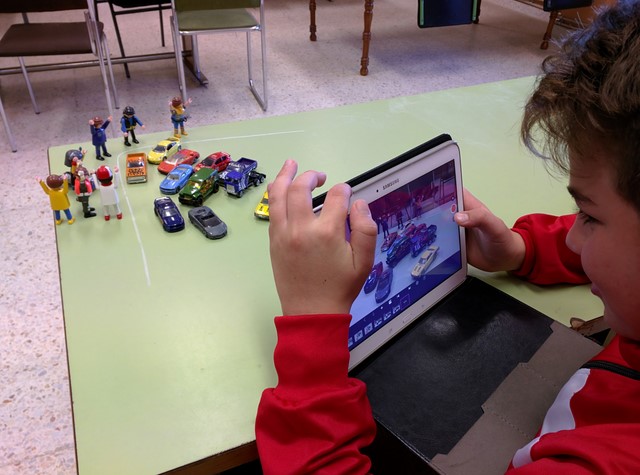
Stop Motion in Arts class (Year 6)

What is "stop motion"?


According to Wikipedia, Stop motion is an animation technique that physically manipulates an object that appears to move on its own. The object is moved in small increments between individually photographed frames, creating the illusion of movement when the series of frames is played as a continuous sequence.
Shaun the Sheep Movie, Frankenweenie, Wallace & Gromit: The Curse of the Were-Rabbit or Chicken Run, are some examples of modern films using stop motion technique. We take pictures and we move the objects on the scene. Finally we play the pictures one after another and we get the feeling that the objects are moving. Here you are a classic movie filmed using the stop motion technique: The Lost World (1925)


What do we need?

We have used our tablets or smartphones cameras and software. For Android devices we used Stop Motion Studio. Thanks to this app you can take pictures and create the video. With this free version we cannot add music so we needed another app like VideoShow.


Extra material for our films have been: toys, plasticine, card, paper... almost any material we thought that could be very useful for our film making. We created characters and a scenary!

Steps we followed


In order to create our project we followed these steps:

1. Planning: we divided our class into groups of three or four students.

2. Designing: we agreed on the topic of our video, the characters and the script.
Rodrigo writing the script for his video
Writing the script
3. Creation: in this step we started working on our project; we created our characters and background, downloaded the apps and started taking pictures for our video.
Modelling our characters
Modelling our characters with plasticine

Creating the backgrounds
Time to start taking pictures!
We take picture after picture after picture to create our film
4. Edition: In this step of our project it is time to edit our video and add some music to it!

5. Promotion:  Currently undergoing! We are uploading our films to online servers (YouTube, Vimeo...) sharing it with our classmates via our class blog, school website, etc.

We will soon hold our films premiere in class and analyse what we have learnt in this project, what we have done well and what we need to improve for the future.

Tuesday, 14 April 2015

Learning about Augmented Reality with colAR Mix in Year 5's Arts&Crafts class

Do you know what is augmented reality (AR)? You can find it out with this application. It is called colAR Mix and it is available for Android and iOS devices. 
Just download the pictures, colour them and look at them through your tablet or smartphone front camera using colAR Mix app. Surprise! Magic! You will see your picture come to life! 


In Year 5's Art&Crafts class we have coloured Gustafer Yellowgold's worksheet and the pukeko too. 
 
http://colarapp.com/wp-content/uploads/2014/07/Puteko-demobook-8Jul14-colarmix-imageprint_final1_Pukeko.pdfhttp://gustaferyellowgold.com/pdf/Gustafer2-final-print.pdf

You can dowload this software from Google Play, from iTunes and from its official website colarapp.com.
Remember that some pictures are free but others are not.

Wednesday, 19 November 2014

Class share, Go Keyboard, Mandos Darkgames, Photo Lab and FaceQ

In our class we love apps for our tablets and smartphones, and we love to share them with our mates at school!
    Baby using a smartphone
  • Pilar was proud to show Class Share, a very nice software to create your school timetable and add notes for important events. You can share it with your friends, teachers and parents.
  • Miguel Ángel talked about Go Keyboard,  one of his favourite apps. It is a keyboard where you can customize the background and use lots of new emoticons and smileys for your messaging apps.
  • Rubén B. loves videogames. He is a great gamer so he chose Mandos Darkgames as a suggestion if we want to have a customized stick for our video game stations.
  • Iván likes drawing and painting a lot. In this ocassion he recommended PhotoLab, an app to edit your pictures with frames, filters, effects and photomontages. It is very easy to use, go ahead!
  • One of Alicia's favourite apps is FaceQ. Do you need an avatar? If your answer is yes you must try FaceQ. You will create your cartoon avatar in minutes by combining various face parts.

Magisto, Draw and Paint, Drastic DS, ¿Cuánto sabes de Primaria? and Mobogenie.

Last Monday five new students talked to us about some apps they enjoy in their devices (tablets or smartphones): 

  • TabletInés brought her iPad and talked about Magisto. It's is a video editor. You can create videos from your pictures and other videos and share them with your friends. Magisto is available for Android here.
  • Itzíar also used her tablet to show Draw and Paint app. By using this software you can draw on any picture available on your device's gallery. You can also take a picture from your camera or even paint on a blank page. If you want to try this app you may download it from here.
  • Rubén R. loves video games so he told us about Drastic DS, a Nintendo DS emulator. After you download this app from Google Play you can download and install any game (called ROM). Here you are a link to the evaluation version of this software.
  • Cinthia's app was a quiz game: ¿Cuánto sabes de Primaria? There are six levels. You start from 1º Primaria level and must get at least a mark of 8 to reach the next level. Do you like it? So, try it here!
  • Paula R.'s choice was for Mobogenie. It is a platform or alternative market for Android resources, where you can find applications, games, music, videos, wallpapers, and other types of resources. Where is it? It's here.

Monday, 17 November 2014

Invenio Carmen and Shazam

As in previous lessons when some kids talked about an app, software or a website they liked, this time Xiomara presented the software Invenio Carmen. This software allows us to search and download from Internet lots of songs from many bands that we like. You can't get this program now because it is considered illegal.

https://play.google.com/store/apps/details?id=com.shazam.android
Laura talked to us about Shazam. This wonderful app can recognise almost any song after some seconds. We can use it to know more about songs we hear on the radio, on the TV, etc. You can download Shazam into your android tablet or mobile by clicking here.


Wednesday, 22 October 2014

PicsArt, Piccollage and Word


This week, Aixa, Marta and Adrián have talked to us about their favorite software:
  • Aixa brought her tablet and made a demonstration of how PicsArt works. It is an App for smartphones and tablets to edit photographs and add effects. You can also share your edited picture. You can download PicsArt here.
  • Marta showed Pic Collage to the class. She used the interactive digital board to display a beautiful collage of pictures designed with this App. You can share your collage too! Click here to download it.
  • Adrián talked about Microsoft Word. This software is used to edit text. You can add pictures to your texts, change font color and size, etc. Word is not free but you can download LibreOffice software here instead.

Monday, 13 October 2014

Essential apps you need for your homework

I have collected on this post some of the apps we have sometimes talked about in class. They are compatible with your android devices (tablets, smartphones...) and will help you at school or at home with your homework.

If you click on the names or the images, Google Play Store website will open in a new tab.

  • Wikipedia: it is the biggest free enciclopaedia online. You get the same information as in the website, including pictures and links.
     Wikipedia
  • Google translator: this is the official Google application for translating. It includes a lot of languages and the chance to listen, copy or share the word. It also has voice recognition for direct translation.  
    https://play.google.com/store/apps/details?id=com.google.android.apps.translate

Do you use more applications on your tablets or smartphones? Please, tell me in your comments below!